
WordPress is powerful, but even the best websites run into issues. A small error can break pages, slow your site, or even lock you out of your dashboard. The good news? Most WordPress errors are common, predictable, and fixable—even without deep technical knowledge. 8 WordPress Settings You Must Change Immediately
Let’s walk through 7 common WordPress errors and exactly how to fix them.
1. White Screen of Death (WSOD)
This error shows a completely blank page—no message, no warning. It’s usually caused by a faulty plugin, 8 Must-Have Plugins for Every WordPress Website theme conflict, or exhausted PHP memory limit.
How to Fix It:
Deactivate plugins via FTP or cPanel, then reactivate them one by one. 7 Best WordPress Security Plugins If that doesn’t work, switch to a default theme and increase PHP memory in wp-config.php.
Why This Matters:
Seeing a blank screen can be scary, especially when your site feels “gone.” WSOD usually isn’t permanent—it’s WordPress protecting itself. Fixing it quickly restores access and prevents panic-driven mistakes that make things worse.
A blank screen usually means a plugin or theme conflict.
2. Internal Server Error (500 Error)
A 500 error means something went wrong on the server, often due to corrupted .htaccess files or plugin issues.
How to Fix It:
Rename the .htaccess file to reset it, then refresh your permalinks. If needed, increase PHP memory or disable plugins.
Why This Matters:
This error blocks both users and search engines. Even short downtime hurts trust and SEO, so resolving it fast keeps your site reliable and professional. 5 On-Page SEO Mistakes Killing Your WordPress Rankings
Server misconfigurations can bring your site down instantly.
3. Error Establishing a Database Connection
This happens when WordPress can’t connect to its database—usually due to wrong credentials or server issues. 7 Common WordPress Mistakes Beginners Should Avoid
How to Fix It:
Check database name, username, and password in wp-config.php. Contact your hosting provider if the server is down. WordPress Backup Strategies: Never Lose Your Data
Why This Matters:
Your database holds everything—posts, pages, users. Fixing this error quickly protects your content and prevents data loss fears.
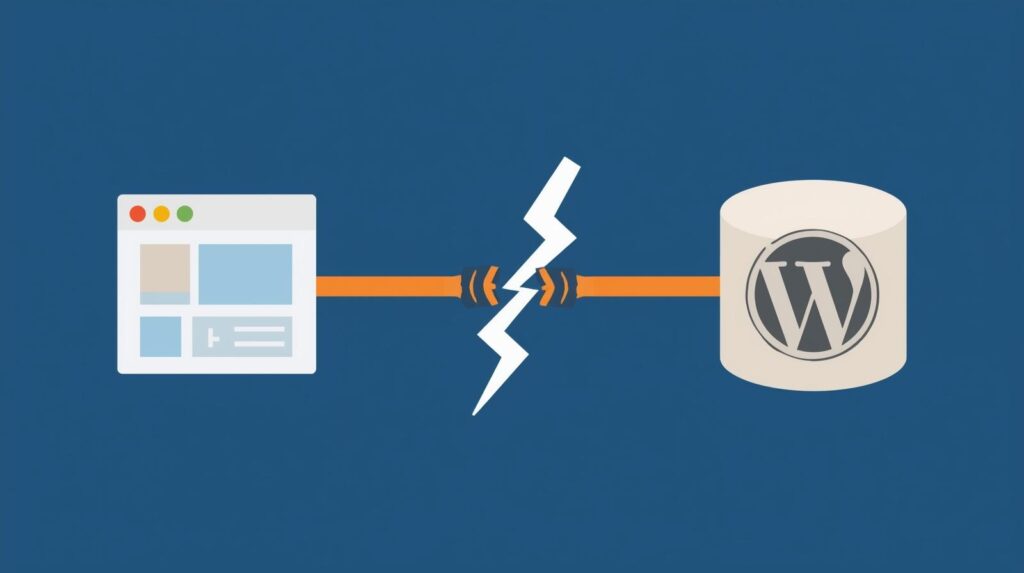
When WordPress can’t reach the database, your site can’t load.
4. 404 Page Not Found Errors
Broken or missing pages often appear after migrations or permalink changes. Migrate a WordPress Website Safely (Full Guide)
How to Fix It:
Go to Settings → Permalinks and click “Save” to refresh URLs. Fix broken links and redirects.
Why This Matters:
404 errors frustrate users and waste SEO value. Fixing them improves navigation and keeps visitors on your site longer.
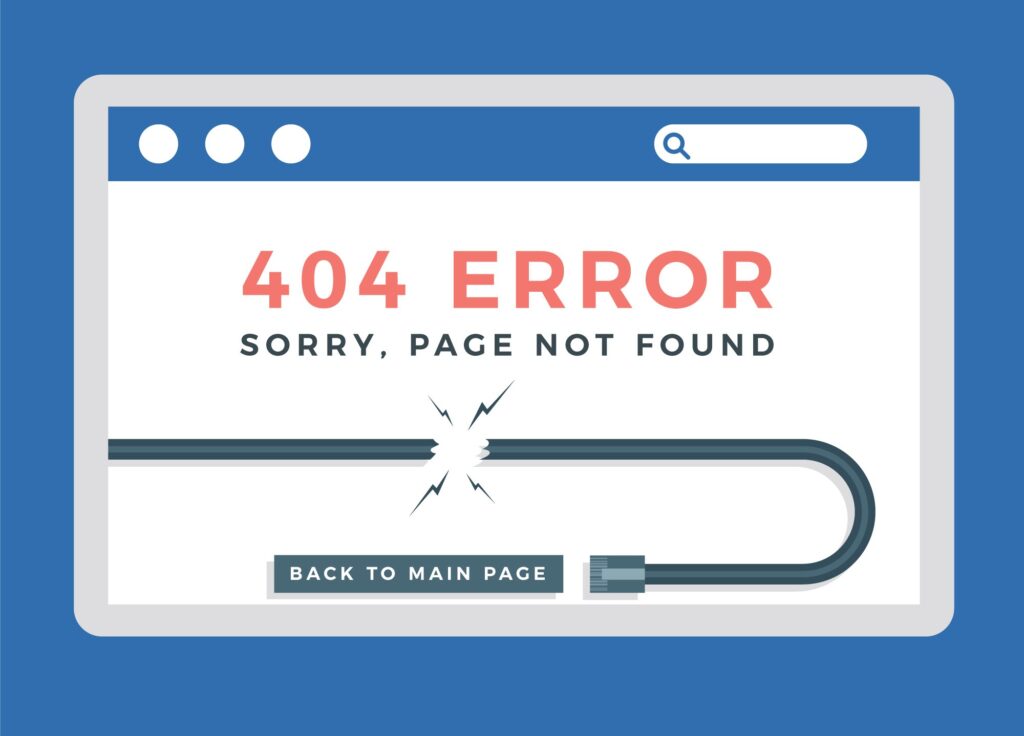
Broken links frustrate users and waste SEO value.
5. Memory Exhausted Error
This happens when your site needs more PHP memory than allowed.
How to Fix It:
Increase memory limits in wp-config.php or upgrade hosting if needed.
Why This Matters:
A site running out of memory feels slow and unstable. WordPress Speed Optimization Fixing this improves performance and prevents sudden crashes.
Limited memory can slow down or crash your site.
6. Too Many Redirects Error
This occurs when redirect rules conflict, often due to SSL or plugin misconfiguration.
How to Fix It:
Clear browser cache, disable redirect plugins, and check site URL settings. Protect Your WordPress Website the Right Way
Why This Matters:
Redirect loops lock users out completely. Fixing them ensures smooth access and prevents SEO penalties.
Conflicting redirects can lock users out completely.
7. Stuck in Maintenance Mode
Sometimes WordPress gets stuck after an update.
How to Fix It:
Delete the .maintenance file via FTP to restore your site.
Why This Matters:
Visitors seeing a maintenance message too long may assume your site is broken. Fixing this quickly maintains credibility. Essential Tools for WordPress Security Checkups
A simple file removal can bring your site back online.
FAQs
Are WordPress errors common for beginners?
Yes. Most beginners experience WordPress errors at some point. The good news is that these errors are usually easy to fix with the right steps. 12 Quick Fixes for Common WordPress Errors
Can WordPress errors affect SEO?
Absolutely. Errors like 500 errors or broken pages can block search engines and hurt rankings if not fixed quickly.
Common WordPress Mistakes That Hurt Website Performance
Do I need coding skills to fix WordPress errors?
Not always. Many errors can be fixed through the dashboard, hosting panel, or simple file edits.
Should I back up my site before fixing errors?
Yes. A backup ensures you can restore your site if something goes wrong during troubleshooting.
WordPress Backup Strategies: Never Lose Your Data
Can WPDelta fix WordPress errors for me?
Final Thoughts
WordPress errors can feel overwhelming—but most are temporary and fixable. Knowing what went wrong and how to respond calmly makes all the difference. 6 AI Tools That Supercharge WordPress Websites in 2026
At WPDelta, we help fix WordPress issues fast—before they affect your traffic, sales, or reputation.